Lightroom Classic can feel slow during a cull, but there is no single architectural cause that applies to every catalogue. Adobe points to preview availability, catalogue and preview-cache placement, storage speed and free space, memory, display resolution, and background work among the factors that affect responsiveness.
Before changing applications, identify where the delay occurs: import, moving between fitted previews, opening a 1:1 view, applying a flag, filtering, or switching modules. Each symptom points to a different test.
Start with the preview you need
Lightroom Classic offers Minimal, Embedded & Sidecar, Standard, and 1:1 previews. Adobe says Embedded & Sidecar uses a larger camera-generated preview, Standard previews are processed by Camera Raw for normal Library use, and 1:1 previews represent actual pixels for close inspection. If the required Standard or 1:1 preview does not exist, Lightroom creates it while you work, which can interrupt navigation.
Choose the trade-off deliberately. Embedded previews can get you browsing sooner. Rendering Standard or selected 1:1 previews before a focused review moves that work earlier. Building 1:1 previews for every frame takes time and disk space, so reserve them for a workflow that really uses them.
Check the catalogue and preview cache together
Adobe recommends keeping the catalogue and its preview cache together; separating them can force preview regeneration. It also recommends a fast drive, adequate free space, and optimising the catalogue when appropriate. The best arrangement depends on the computer and storage you actually use.
Do not assume every pause is a database write or that the catalogue prevents the next preview from loading. Those internal timing claims are not established by Adobe’s public guidance. Test with Activity Monitor, Task Manager, and a copied catalogue if you need to distinguish storage, CPU, memory, or background work.
Use Lightroom’s documented selection controls
Lightroom Classic supports Pick, Reject, and Unflagged states, star ratings, Compare, and Survey views. Adobe documents P for Pick and X for Reject; hold Shift with P or X to set the flag and select the next photo. This gives you an explicit advance workflow without depending on an undocumented shortcut claim.
Compare and Survey are useful when the delay comes from repeatedly switching between similar frames rather than preview rendering. Filter only after the flags or ratings you need are in place, and verify that metadata written for another application appears as expected.
Be precise about Lightroom and the cloud
Lightroom Classic and the cloud-focused Lightroom application have different storage and sync models. Do not assume that every photo must finish uploading before it can be reviewed, or that cloud bandwidth is the cause of a local Lightroom Classic slowdown. Check which application you use, where its originals are stored, and whether syncing or other background work is active.
If cross-device access is central, include sync time and offline behaviour in the workflow test. If the job stays on one workstation, measure the local catalogue and preview path separately.
When an external culling step helps
A separate culling application can make sense when you want to review a copied shoot before adding every frame to a long-lived Lightroom catalogue, or when its comparison and keyboard model better matches the job. It also adds a hand-off that must be verified. Flags, ratings, sidecars, companion files, crops, and folder structure do not transfer identically in every combination of tools.
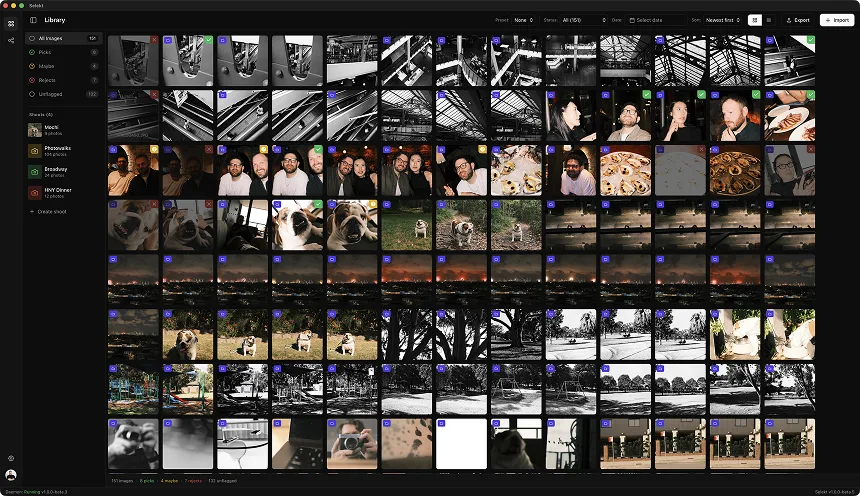
Selekt supports a focused desktop cull with configurable status keys, Quickview, a click-to-enter 100% loupe, related-frame comparison, and export workflows. It does not replace Lightroom’s editing or asset-management features. Test a small copied folder through cull, export, Lightroom import, and correction before relying on the combination.
A short diagnostic sequence
- Reproduce the delay with a small representative folder.
- Note whether the missing step is a fitted, Standard, or 1:1 preview.
- Confirm catalogue and preview-cache location, free space, and drive health.
- Pause unrelated background work and repeat the same navigation.
- Try Lightroom’s documented flags, Shift-to-advance, Compare, and Survey views.
- If you test an external culler, time the complete hand-off and verify metadata on returned files.
The aim is a reliable workflow on your hardware, not a universal verdict about Lightroom Classic. Keep the change that removes the measured bottleneck without creating correction work later.