The keyboard shortcuts that cut your culling time in half
Map out the optimal keyboard layout for photo culling. Covers P/X rating keys, auto-advance, zoom toggles, and how single-keystroke workflows create a flow state that doubles your speed.
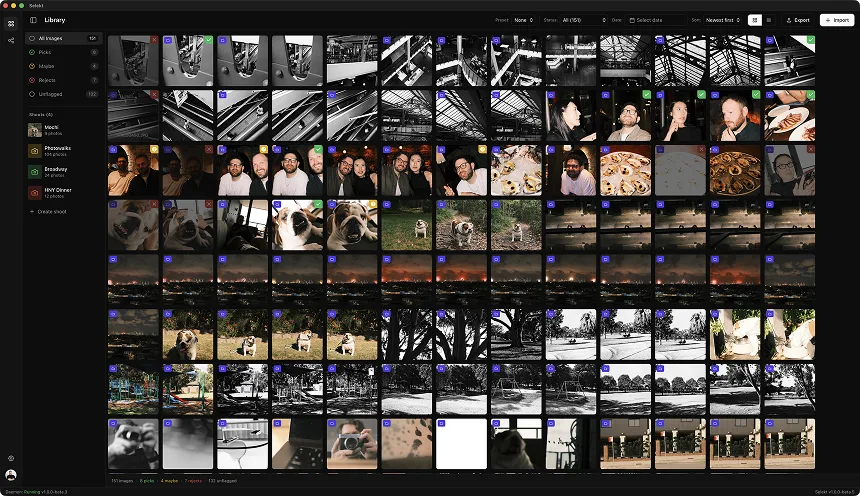
The difference between a 30-minute cull and a 90-minute cull usually isn't the number of images. It's the number of keystrokes per image. Photographers who cull with a mouse are clicking three to five times per image: click the star, click next, click to zoom, click to zoom out, click next again. At 2,000 images, that's 6,000 to 10,000 clicks. Your hand hurts, your wrist hurts, and you're slow. Photographers who cull with keyboard shortcuts hit one key per image. One. Rate and advance in a single keystroke, 2,000 times, done. This post breaks down exactly which keys matter, how auto-advance changes everything, and how to set up your keyboard layout for maximum speed across different tools.
The only keys that matter
You can map 50 shortcuts and never use most of them. For culling, you need exactly five core keys. P for Pick. X for Reject. Left arrow for previous image. Right arrow for next image. Z for zoom toggle (fit vs. 100%). That's it. Everything else is a nice-to-have. If you can rate an image and move to the next one without lifting your hands from the keyboard, you're already faster than 90% of photographers. Some workflows add M or U for "maybe" or "unflag" as a sixth key, which is useful during a refine pass. But for your first pass through a shoot, you're making binary decisions: keep or kill. Two keys plus navigation.
Auto-advance is the single biggest speed gain
Auto-advance means that when you press P or X, the tool automatically moves to the next image. Without auto-advance, rating an image takes two keystrokes: P, then right arrow. With auto-advance, it takes one: P. That's a 50% reduction in keystrokes, which sounds minor until you multiply it across a 3,000-image wedding. Without auto-advance: 6,000 keystrokes minimum. With auto-advance: 3,000. The speed difference compounds because auto-advance also eliminates the micro-decision of "did I already advance or not?" after each rating. You fall into a rhythm. P-P-X-P-X-X-P. Each keystroke both rates the current image and shows you the next one. Your brain never has to think about navigation. It only thinks about the image in front of you. This is what flow state feels like during culling. In Selekt, auto-advance is on by default. Lightroom has it as an option under Photo > Auto Advance (or Caps Lock as a toggle, which is easy to accidentally turn off). Photo Mechanic has it built into its rating workflow. If you're using any tool without auto-advance enabled, turn it on right now. It's the single highest-impact change you can make.
How different tools handle keyboard shortcuts
Lightroom Classic uses P for flag as Pick, X for flag as Reject, U for Unflag, and 1-5 for star ratings. Navigation is left/right arrows. The zoom toggle is Z, which cycles between fit and 1:1. Lightroom's shortcuts are fine, but the tool is doing a lot of catalog work behind each keystroke (writing to the database, updating previews), which can introduce a slight lag between pressing a key and seeing the next image. Photo Mechanic is the speed benchmark that professionals have used for decades. It reads directly from the card or folder with no import step, and its keyboard response is essentially instant. Rating uses 0-5 for stars or Ctrl+0 through Ctrl+8 for color classes. Navigation is the same left/right arrows. The downside is that Photo Mechanic's interface looks like it was designed in 2004, because it was. Selekt uses P for Pick, X for Reject, arrow keys for navigation, and Z for zoom. Auto-advance is on by default. The key difference from Lightroom is that there's no catalog write happening between keystrokes. Images load from the file system directly with hardware-accelerated decoding, so the delay between pressing a key and seeing the next image is under 50 milliseconds. It feels like flipping through prints on a table.
The zoom toggle workflow
Most of your culling should happen without zooming. You're evaluating composition, moment, expression, and overall exposure at the fit-to-screen level. Zooming to 100% on every image will triple your culling time and barely improve your hit rate. The zoom key (Z in most tools) should be used selectively. Use it when you're comparing two similar frames and need to check which one is sharper on the subject's eyes. Use it on group shots to verify nobody is blinking. Use it on detail shots where tack sharpness is the whole point. Don't use it on your first pass. Don't use it on obvious rejects. Don't use it on every single image. A good rule of thumb: zoom on less than 10% of your images during a cull. If you're zooming more than that, you're pixel-peeping instead of culling. Some photographers map zoom to a mouse button or scroll wheel so they can zoom without moving their rating hand. This is a smart optimization if you shoot genres where sharpness checks are frequent, like product or macro work.
Hand position and ergonomics
Where you put your hands matters for a 2,000-image session. The optimal position for most culling tools: left hand covers P (ring finger), X (index finger or middle finger, depending on your keyboard), and Z (pinky). Right hand covers the arrow keys. This keeps both hands stationary for the entire cull. You never reach, you never reposition. Some photographers remap keys to cluster everything under the left hand: for example, A for pick, S for reject, D for next, F for previous, W for zoom. This frees up the right hand entirely for a coffee mug or a pen for taking notes. If you use a compact or 60% keyboard, the arrow keys might be on a function layer, which adds a keystroke. Consider remapping navigation to something like J and K (previous/next) to keep everything on the main layer. The worst ergonomic setup is alternating between keyboard and mouse. Every time you switch, you lose a second or two finding your position, and over 2,000 images, that adds 30 to 60 minutes of pure waste.
Building the flow state
The goal of all this keyboard optimization is to reach a mental state where you stop thinking about the tool and start thinking only about the images. Psychologists call it flow. Photographers call it being in the zone. It happens when the gap between seeing an image and acting on it drops to zero. You see a missed focus shot and your finger hits X before you've consciously processed the decision. You see a genuine moment and P fires automatically. Auto-advance shows you the next frame and you're already evaluating it. The enemies of flow state during culling are: waiting for images to load (tool problem, not a keyboard problem), having to click menus or buttons (solved by shortcuts), breaking rhythm to zoom and zoom back out (solved by saving zoom for later passes), and any kind of dialog box, confirmation prompt, or undo popup that interrupts the stream. A well-configured culling setup with the right shortcuts lets you sustain 1 to 2 seconds per image for an entire first pass. At that pace, 2,000 images take 35 to 65 minutes. Not because you're rushing, but because you're not wasting time on anything except the decision itself.
Quick reference: optimal key mapping
Here's a practical cheat sheet for setting up your culling keys, regardless of which tool you use.
Core actions: • P: Pick / select / flag as keeper • X: Reject / flag for deletion • U or M: Unflag or Maybe (for second pass) • Left arrow: Previous image • Right arrow: Next image • Z: Toggle zoom (fit vs. 100%)
Enable auto-advance so P and X automatically move to the next image. In Lightroom, toggle Caps Lock or go to Photo > Auto Advance. In Selekt, it's on by default. In Photo Mechanic, it's part of the rating workflow.
Optional but useful: • 1-5: Star ratings (if you use stars instead of flags) • R: Toggle RAW vs. JPEG view (for RAW+JPEG shooters) • C: Compare mode / side by side • F: Fullscreen toggle
Print this out and tape it to your monitor until the keys are muscle memory. Most photographers internalize the layout within two or three shoots. After that, you'll never think about keystrokes again. You'll just think about photos.
Related
Ready to speed up your culling?
Selekt is a free photo culling app for macOS & Windows with keyboard shortcuts, AI tagging, and Lightroom export.
Download free