The Complete Photo Culling Workflow Guide for 2026
Learn how to cull photos efficiently with keyboard shortcuts, star ratings, and a structured workflow. Covers high-volume shoots from 500 to 50,000 images.
Photo culling is the process of reviewing, rating, and selecting your best images after a shoot. It's the critical step between pressing the shutter and opening your editor. Done well, culling saves hours per shoot and ensures only your best work reaches clients.
Why culling matters more than editing
Most photographers spend 60-80% of their post-production time on images that will never be delivered. If you shoot 2,000 frames at a wedding, you'll typically deliver 400-600. That means 1,400+ images are reviewed, edited, and then discarded. Culling first flips this equation: you identify your selects before investing editing time, so every minute in Lightroom is spent on images that matter.
The three-pass culling method
The most efficient culling workflow uses three quick passes instead of one slow one. Pass 1 (Reject): Go through every image at speed and reject the obvious misses—out of focus, bad exposure, closed eyes, duplicates. Use the X key and move fast. Don't overthink. This pass alone typically eliminates 40-60% of your images. Pass 2 (Pick): Review the survivors and mark your selects with P. These are the images you'd be proud to deliver. Aim for 15-25% of the original count. Pass 3 (Refine): Review your picks and downgrade any that don't hold up on a second look. Compare similar frames side by side and choose the strongest from each sequence.
Keyboard shortcuts are non-negotiable
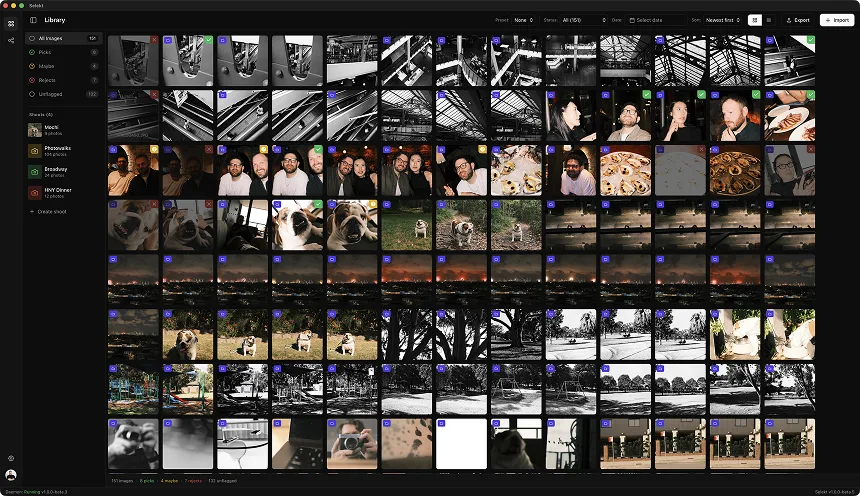
Mouse-based culling is 3-5x slower than keyboard-driven culling. Every time you move your hand to click a star rating or flag, you lose momentum. The fastest photographers assign culling actions to single keys: P for Pick, X for Reject, M for Maybe, and arrow keys for navigation. In Selekt, these shortcuts work out of the box with auto-advance, so you can rate and move to the next image in a single keystroke.
Setting up your culling workspace
Your culling environment matters. Use a consistent workspace with: a large preview area (at least 60% of your screen), a thumbnail strip for context, and no distracting panels. Full-screen or near-full-screen preview lets you evaluate sharpness, expression, and composition without zooming. Some photographers prefer a dual-monitor setup with the grid on one screen and a loupe view on the other. The key principle is that your culling workspace should be simpler than your editing workspace.
Handling high-volume shoots (5,000+ images)
Sports, event, and wildlife photographers regularly shoot 5,000-20,000 frames per session. At this scale, speed is everything. Tips for high-volume culling: 1) Pre-sort by time to group sequences together. 2) Use burst detection to identify rapid-fire sequences and cull as groups. 3) Set a time limit per image (2-3 seconds max for the first pass). 4) Use AI auto-tagging to surface the best candidates automatically. 5) Never zoom to 100% on the first pass—save pixel-peeping for the refine stage.
Culling before import vs. after import
There are two schools of thought: cull from the card before importing to your catalog, or import everything first and cull inside your editor. Culling before import keeps your catalog lean and your disk clean. Culling after import means you always have the originals if you change your mind. The best approach is a hybrid: import to a dedicated culling tool like Selekt (which creates only lightweight previews, not full copies), make your selections, then export your picks to Lightroom or Capture One for editing.
Exporting selects to Lightroom
Once your cull is complete, you need a clean handoff to your editor. The standard approach is XMP sidecar files that carry your star ratings and color labels. When you import these files into Lightroom, your cull decisions appear automatically in the Library module. This means zero repeated work—your picks are flagged, your rejects are absent, and you can jump straight to the Develop module.
Common culling mistakes
- Spending too long on each image. If you're debating for more than 5 seconds, mark it as Maybe and move on. 2) Culling while zoomed to 100%. Judge composition and moment first, sharpness second. 3) Not making decisive rejections. If it's not a clear yes, it's a no. 4) Culling without a system. Pick your method (flags, stars, colors) and stick with it consistently across all shoots. 5) Re-culling the same images. Once you've made a decision, trust it and move forward.
Related
Ready to speed up your culling?
Selekt is a free photo culling app for macOS & Windows with keyboard shortcuts, AI tagging, and Lightroom export.
Download free