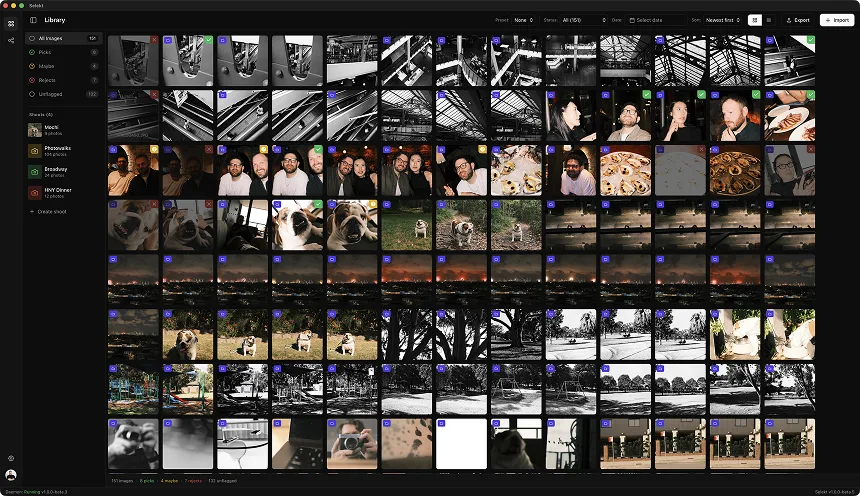
Windows photographers have several credible culling paths in 2026. Photo Mechanic prioritises ingest, previews, and metadata. Aftershoot can produce an AI-assisted or automated first pass. Narrative combines assessments, face tools, comparison, and ranked scenes. Selekt supports manual selection with local quality scoring and related-frame groups. Lightroom Classic keeps culling inside the editing catalogue.
Avoid choosing from generic claims that one app is “instant” or that a particular framework is always slow. Storage, RAW preview size, camera format, GPU, display resolution, and the next application in your workflow all affect the experience.
Windows checks before you choose
Start with compatibility. Current Photo Mechanic requires 64-bit Windows 10 or later. Aftershoot lists 8 GB RAM and a recent CPU as minimums, and warns that preview rendering or retouching may be unreliable with Intel integrated graphics or GPUs below 2 GB VRAM. Narrative supports Windows, but its official page notes that destination support differs: Lightroom Classic shipping is supported on Windows, while some other one-click destinations are Mac-specific.
Adobe’s current Lightroom Classic guidance recommends a fast SSD and 16 GB or more RAM; GPU needs rise for high-resolution displays and AI editing features. Those are Adobe requirements, not universal culling rules. Photo Mechanic says its main bottleneck is input/output, so the speed of the drive holding the images matters.
Do not disable security scanning as a generic performance tip. Instead, copy one representative shoot to your normal working drive, use current stable graphics drivers, and measure the complete cull and export on the computer you own.
The Windows shortlist and current plans
Photo Mechanic is strongest for ingest, embedded RAW previews, captions, renaming, and deadline file delivery. Standard lists at US$14.99 monthly, US$149 annually, or US$299 perpetual with a year of updates. Photo Mechanic Plus is no longer sold, so do not choose it for a new catalogue workflow.
Aftershoot Select can automate or assist the first cull, with smart duplicate grouping and key-face detection. Current official pricing is US$10/month billed annually or US$15 monthly, with unlimited processing and a 30-day trial. Processing is local and can run offline after installation.
Narrative supports Windows, but there is no permanent free plan. Lite is US$10/month billed annually or US$15 monthly. Standard is US$20/month billed annually or US$29 monthly and adds advanced AI culling, Scenes View, and Close-ups. Higher plans add editing profiles and team seats; temporary discounts should not drive a long-term comparison.
Selekt provides unlimited free manual culling with on-device focus, exposure, and blur scoring plus groups for bursts, similar images, and near-duplicates. Optional cloud object/scene tags use the Free allowance of 100 analyses each month. This comparison focuses on the verified Windows desktop workflow.
Windows feature and hand-off differences
| Need | Start with | Windows detail to test |
|---|---|---|
| IPTC, ingest, rename, transmit | Photo Mechanic | Drive I/O strongly affects its workflow; Plus catalogue is unavailable |
| AI-generated or assisted selection | Aftershoot | Minimum 8 GB RAM; some preview/retouch features may be unreliable on low-VRAM or Intel integrated graphics |
| Ranked scenes and face inspection | Narrative Standard+ | Lightroom Classic shipping supports Windows; Narrative documents some other one-click destinations as Mac-only |
| Manual cull with local quality signals | Selekt | Local culling is unlimited; cloud tags use a separate allowance |
| Cull and edit in one catalogue | Lightroom Classic | Adobe recommends a fast SSD and 16 GB+ RAM; GPU needs rise with high-resolution displays and AI editing |
Narrative Lite covers core fast culling, focus scores, and shipping, while Standard is the relevant tier if you are comparing Scenes View and Close-ups. Aftershoot is the stronger fit when you want a proposed selection rather than assessment aids. Selekt fits photographers who want grouped manual decisions and technical signals.
Test on the Windows computer that travels
Use the same copied RAW shoot in two candidates and complete the export to your actual editor. Include bursts, group portraits, difficult exposure, and a client-critical moment. Check whether correcting an AI suggestion or group costs more time than it saves.
Run the test on the laptop used at events as well as the studio workstation. Keep security settings intact, use stable graphics drivers, and store the copied test on the drive you normally cull from. Confirm offline behaviour if venue internet is unreliable. Prices and bundles change, so check the canonical vendor page in your currency before subscribing.
Which Windows culler should you try first?
- Choose Photo Mechanic when rapid ingest, IPTC metadata, file naming, and delivery are core requirements.
- Choose Aftershoot when you want AI to create or assist with a first pass across a high-volume job.
- Choose Narrative when portrait and wedding decisions revolve around faces, eyes, focus, and ranked scenes; verify your editor hand-off on Windows.
- Choose Selekt when you prefer manual creative decisions with unlimited free culling, on-device focus/exposure/blur signals, and burst or similar-frame groups.
- Stay with Lightroom Classic when its native flags, ratings, Compare, and Survey already give you a reliable end-to-end process.
Test on the slowest Windows machine you regularly take on location as well as the studio workstation. A workflow that only feels good on the larger GPU may be the wrong field choice.
Sources and further reading
- Camera Bits: Photo Mechanic pricing ↗
- Camera Bits: Photo Mechanic Plus is no longer available ↗
- Camera Bits: supported formats and embedded RAW previews ↗
- Camera Bits: system requirements ↗
- Aftershoot current pricing ↗
- Aftershoot culling FAQ and requirements ↗
- Narrative current pricing ↗
- Narrative for Windows ↗
- Adobe: Lightroom Classic GPU guidance ↗
- Selekt pricing and plan details ↗