Workflow··7 min read

How to cull photos on iPad in 2026

A practical guide to culling photos on iPad. Why tablet culling works, what apps support it today, and how Selekt (desktop now, with an iPad app coming soon) aims to turn your tablet into a powerful photo triage tool between shoots.

You just wrapped a portrait session. You're sitting in a cafe with an hour before your next booking. Your iPad is in your bag. Your camera card is in your pocket. What if you could knock out your culling right now, instead of adding it to tonight's editing marathon?

For most photographers, culling happens at the desk. You get home, import to Lightroom, and grind through thousands of images on a big monitor. It works, but it means culling always competes with editing time. And if you shot a wedding on Saturday, you might not start culling until Monday.

The iPad changes this equation. A modern iPad has a gorgeous display, enough processing power for photo work, and goes everywhere you do. The missing piece has always been software: Lightroom for iPad exists but isn't built for rapid culling, and most dedicated culling tools are desktop-only.

That's starting to change.

Why iPad culling makes sense

There are real advantages to culling on a tablet that go beyond convenience.

The display is excellent for photo evaluation. Even the base iPad has a Liquid Retina display with P3 wide colour. iPad Pro with its mini-LED or OLED panel rivals dedicated photo monitors for colour accuracy. You're not compromising on image quality by culling on an iPad.

Touch is natural for photo triage. Swiping through images, pinching to zoom into details, tapping to flag or reject: these gestures map perfectly to culling decisions. There's an immediacy to touch that feels different from clicking through images with a mouse.

Portability turns dead time into productive time. Airport lounges, train rides, breaks between shoots, waiting rooms. Every photographer has hours of dead time each week. If you can cull during those gaps, your evenings are freed for actual editing (or, you know, having a life).

And the iPad's battery life means you can cull for hours without hunting for a power outlet.

The file access problem

Before we get into apps, let's address the biggest friction point: getting photos onto your iPad.

iPadOS has come a long way with Files app support, but it's still not as straightforward as plugging a card into a laptop. Your options:

USB-C card reader (direct): If your iPad has USB-C (all current models), plug in a card reader and access files directly through the Files app. This is the fastest method. The iPad can read SD and CFexpress cards natively. For CF Type A (Sony shooters), you'll need a compatible reader.

Wireless transfer from camera: Many cameras offer WiFi transfer to a companion app. It works but it's slow for large batches and typically transfers JPEGs only, not RAW files.

iCloud/Google Photos sync: If your desktop imports photos to a cloud service, they'll eventually appear on your iPad. But "eventually" might be hours for a large shoot, and you're dependent on upload speed.

Portable SSD: Plug a USB-C SSD into your iPad and browse files directly. Some photographers dump cards to a portable SSD in the field and cull from there.

The card reader approach is best for serious iPad culling. It's fast, works offline, and gives you access to full RAW files.

What about Lightroom on iPad?

Adobe Lightroom exists on iPad and it's a capable editor. But for culling specifically, it has the same fundamental problem as the desktop version: it's an editing app with culling bolted on.

Importing a large shoot into Lightroom on iPad means waiting for cloud sync (if using the cloud-based Lightroom) or dealing with local storage limitations. The flag/reject workflow exists but it's buried under editing UI. There's no dedicated culling mode, no scene grouping, no side-by-side comparison optimised for rapid triage.

If you already pay for a Creative Cloud subscription and your shoots are small (under 500 images), Lightroom on iPad is serviceable. But for high-volume culling, a dedicated tool is significantly faster.

Dedicated culling apps on iPad

Most professional culling tools are desktop-only. Photo Mechanic, Aftershoot, and Narrative Select don't have iPad versions. This has been a gap in the market for years.

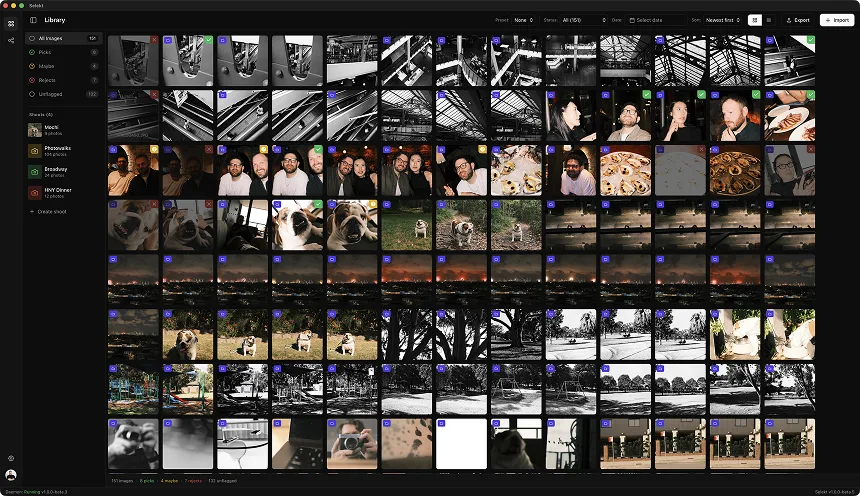
Selekt is a desktop culling app today (macOS and Windows), with native iPad and iPhone apps coming soon. The mobile apps won't be a watered-down companion: they're being built for real culling work with the same scene-based workflow as the desktop version.

How it's designed to work: you shoot, import to Selekt on your desktop (or directly from a card reader), and your shoots sync to the cloud. Once the iPad app ships, you'll open it and find your images already there. Cull on the iPad using swipe gestures and tap interactions, and your picks sync back to the desktop for editing.

The scene-based approach is particularly well-suited to iPad. Instead of scrolling through a flat grid of 2,000 images (painful on any device), you tap into a scene, compare a handful of similar shots, pick the best one, and move to the next scene. It turns culling into a series of quick, focused decisions rather than an endurance test.

iPad culling workflow with Selekt (coming soon)

Here's the practical workflow Selekt's upcoming iPad app is designed around:

  1. Shoot as normal. Import your images to Selekt on your desktop when you get back to your computer (or, once the iPad app ships, connect a card reader directly to your iPad).

  2. Selekt organises your shoot into scenes automatically based on timing and content similarity. This happens on import.

  3. Once the iPad app is available, open Selekt on your iPad. Your shoot appears with scenes already grouped.

  4. Work through each scene: swipe to browse, tap to compare, flag your picks. The tactile interaction of touch makes quick yes/no decisions feel natural.

  5. Your selections sync back to the desktop. When you sit down to edit, your picks are already waiting in Lightroom, Capture One, or whatever editor you use.

The key benefit: steps 4 and 5 can happen anywhere. Coffee shop, train, couch. You're not tied to your desk for the most time-consuming part of post-production.

Tips for effective iPad culling

A few things that make iPad culling smoother:

Use a matte screen protector. The anti-glare coating makes a big difference when you're evaluating photos in variable lighting conditions (cafes, outdoors). It also reduces fingerprint visibility on the screen.

Turn off True Tone when culling. True Tone adjusts your display colour temperature based on ambient light, which is great for reading but can mislead colour evaluation. Go to Settings > Display & Brightness and toggle it off during culling sessions.

Learn the gestures. Whatever app you use, spend five minutes learning the gesture shortcuts. In Selekt's upcoming iPad app, swiping and tapping will replace the keyboard shortcuts you'd use on desktop. The faster your fingers know the gestures, the faster you cull.

Don't pixel-peep on first pass. The iPad screen is sharp enough to check composition, expression, and moment. Save 100% zoom checks for your top candidates only. First pass should be fast and instinctive.

Consider an iPad stand. If you're culling at a desk or table, propping the iPad at an angle (like a small monitor) is more comfortable than laying it flat. The Apple Magic Keyboard or any angled case works well.

What about iPhone?

Everything that applies to iPad culling will also work on iPhone, just on a smaller screen. Selekt's native iPhone app is coming soon, with the same sync and scene-based workflow.

Is a 6.7-inch screen ideal for photo culling? Not really. But for a quick first pass on the train home from a shoot, rejecting the obvious misses and flagging the standouts, it's surprisingly usable. You're not making final selections on your phone. You're clearing the obvious rejects so your desktop session starts with a much smaller set.

Think of phone culling as triage, not surgery.

The bigger picture: cull anywhere, edit at the desk

The traditional photography workflow is sequential and location-dependent: import at desk, cull at desk, edit at desk, export at desk. Every step happens in the same place on the same machine.

Tablet culling breaks the most time-consuming step out of that chain. Culling is the one phase that doesn't need a colour-calibrated monitor, doesn't need plugin access, and doesn't need heavy processing power. It needs a good display and fast interaction. An iPad delivers both.

The photographers who've adopted mobile culling consistently say the same thing: it's not just about convenience, it's about turnaround time. When you can cull a Saturday wedding on Sunday morning over coffee, your clients get their gallery days earlier. And you don't spend Monday evening dreading a 3,000-image culling session.

If you haven't tried culling on a tablet, grab a recent shoot and give it 15 minutes. You might not go back.

Ready to speed up your culling?

Selekt is a free photo culling app for macOS & Windows with keyboard shortcuts, AI tagging, and Lightroom export.

Download free